Video Guide to setup ACME for IIS Windows
Step 1. Purchase an ACME SSL Certificate
Before you begin the configuration, you’ll need to purchase a trusted ACME-compatible SSL Certificate. While free ACME providers such as Let’s Encrypt are suitable for hobby or temporary projects, they lack the reliability, support, and flexibility required for production environments. With SSLTrust's Domain Validated ACME Certificates, you get the same automated issuance and renewal benefits—plus enterprise-grade advantages such as Unlimited Certificates, Unlimited Server Deployments, and Multiple Account Bindings (EAB) to securely manage certificates across different systems. All certificates are backed by globally trusted Certificate Authorities and supported by SSLTrust’s expert team. You can have a look at our ACME SSL Certificates. Also, do check out our ACME SSL Certificates from Verokey and Sectigo. You can also use the SSL Selector on our website. If you're still unsure of what certificate to choose for your business, please contact our Sales Team, and they will be glad to help you out.
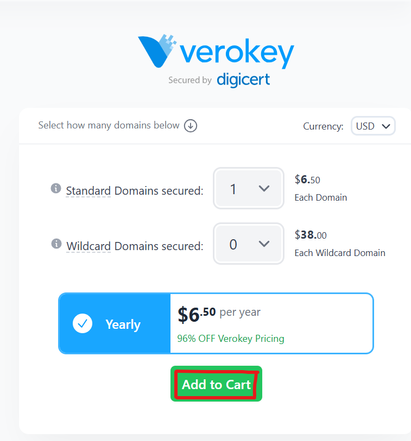
1. After having finalised your choice and no. of domains to be secured, click on "Add to Cart"
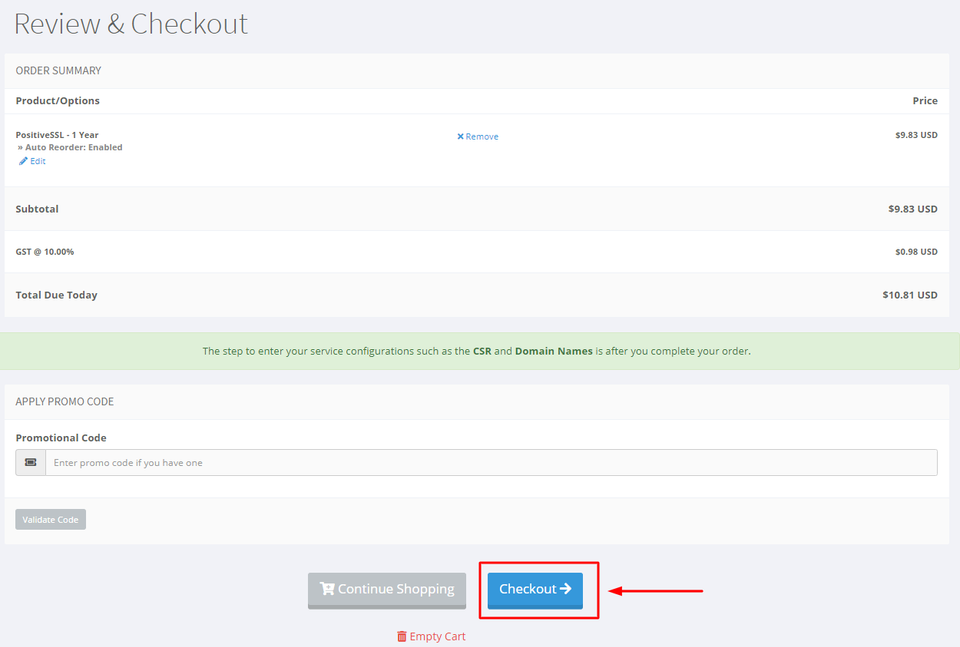
Complete the checkout process.
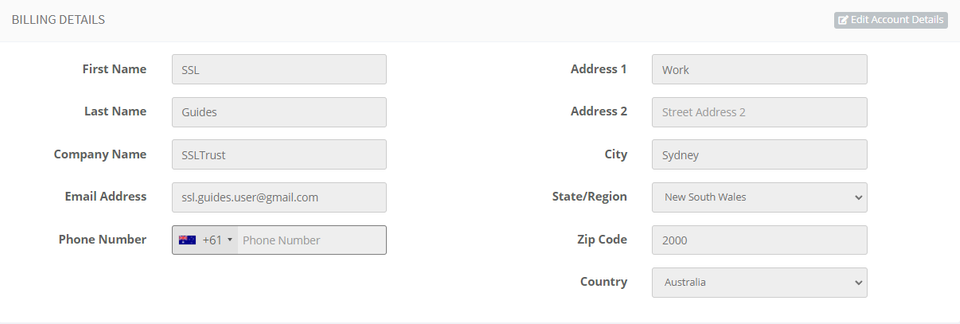
Provide your account information
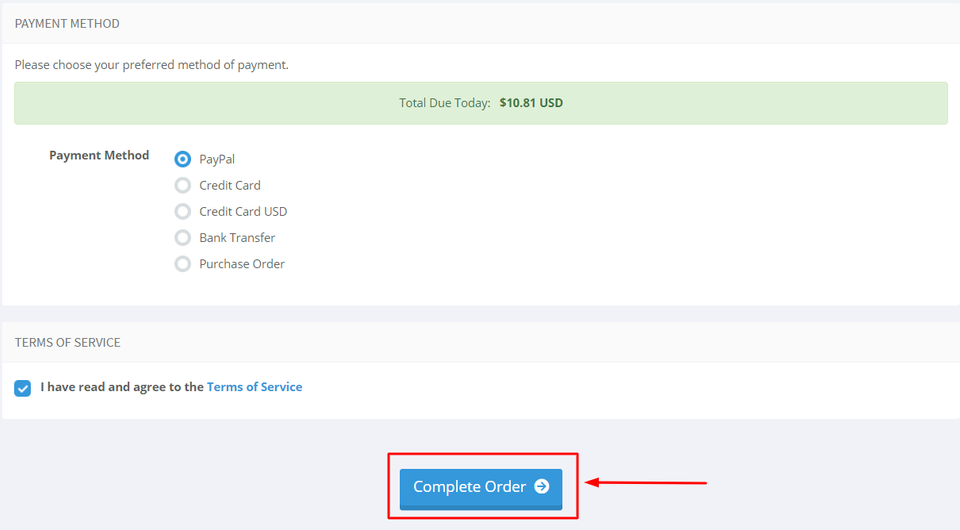
Pick the payment option you prefer, then click on the checkout button
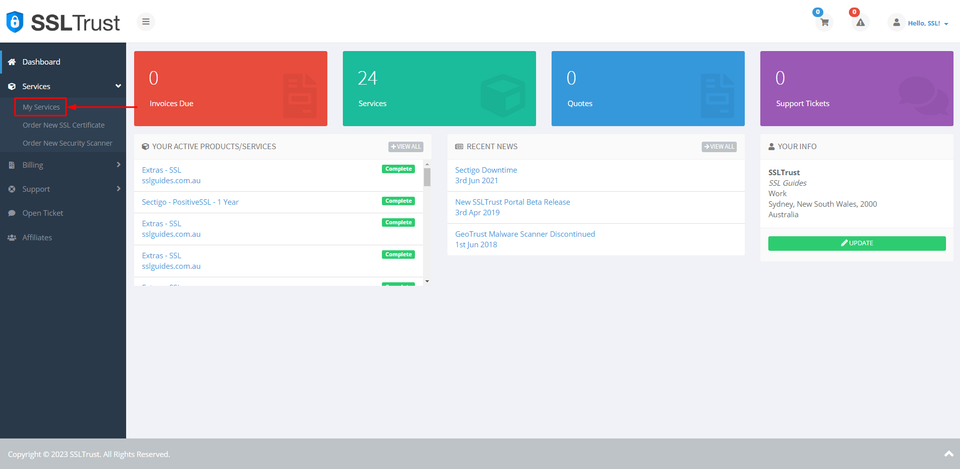
2: Following your SSL Certificate purchase, you're ready to commence configuring it. To complete this action, navigate to your SSLTrust account and handle your latest purchase. Access the SSLTrust Dashboard, then navigate to Services and select My Services.
Your purchased certificate and order status should be visible to you. Next, click on Manage.

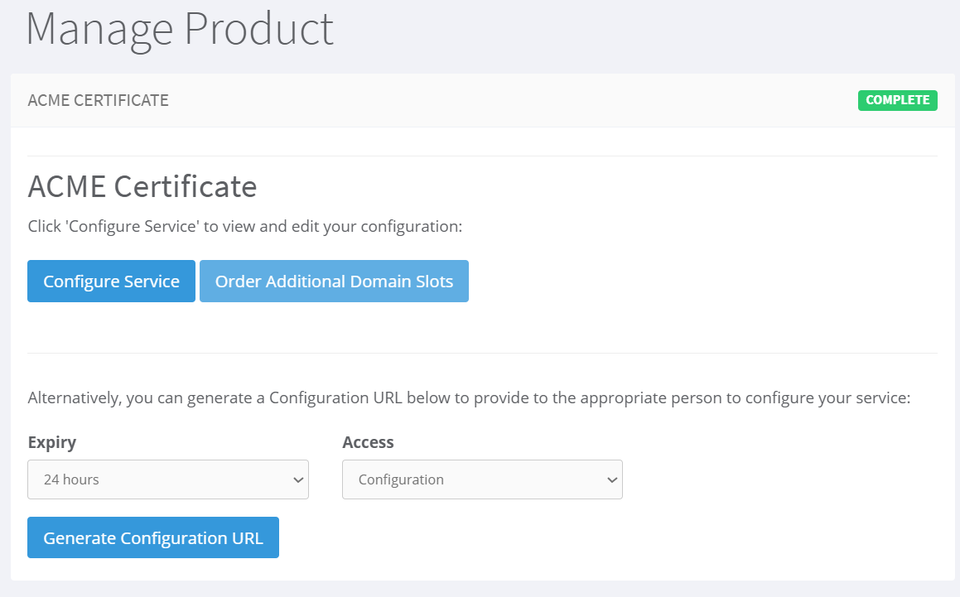
Upon clicking Manage, you'll find yourself on the Product Details page of your SSL Certificate. Click on "Configure Service" to personally configure the settings. Alternatively, you can generate a configuration URL with an expiry and send it to the concerned person for them to handle the configuration on your behalf.
Step 2. Configure your ACME SSL Certificate
1. After successful purchase, you can proceed to configure your ACME SSL Certificate by generating your External Account Binding (EAB) credentials with the Certificate Authority (CA) and submitting the domain name you want to secure. This step prepares your certificate for ACME automation and ensures you have the credentials needed for issuing your certificate in the following steps.
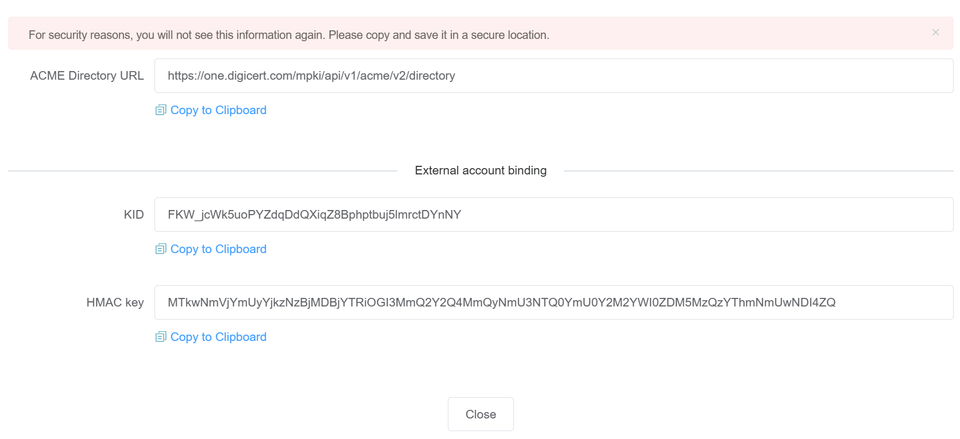
What is an External Account Binding (EAB)? An External Account Binding (EAB) is a pair of secure credentials provided by your Certificate Authority (CA) that proves your ACME client is authorised to request certificates for your account. Think of it as a unique key that links your purchased SSL Certificate to the automated ACME system. The EAB consists of two parts: Key ID (KID) - identifies your account. HMAC Key - securely verifies your requests. Without these credentials, the Certificate Authority (CA) will not issue certificates through ACME.
Note: If you purchase an ACME SSL Certificate of another certificate authority, the configuration windows might look a bit different but essentially, the process is the same involving External Account Binding (EAB) credentials.
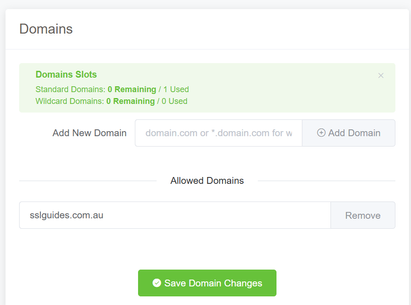
2. On the configuration page, enter your domain name, click on "Add Domain" and then click on "Save Domain Changes"
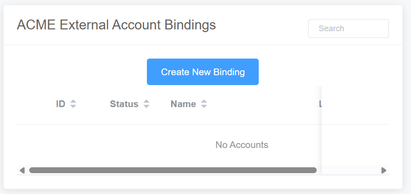
Now, create a new binding.
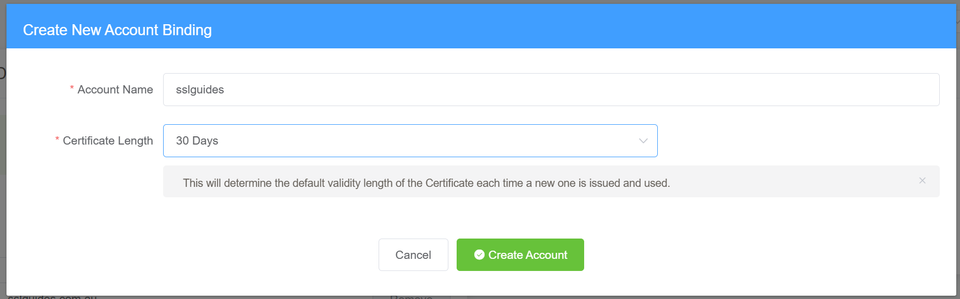
Enter your account name and then select the Certificate Length as "30 days". This means that the certificate will automatically be renewed every 30 days. Click on "Create Account".
You will now see 3 fields - the ACME directory URL, KID and HMAC Key. Make sure to save all of them at a secure location, you will not be able to see them again.
Step 3. Download Win-ACME and configure IIS Webserver
1. Download the latest release of Win-Acme from the official website: https://www.win-acme.com/.
2. Extract the downloaded ZIP file to a folder on your server, for example, C:\win-acme.
3: Open IIS Manager on your Windows Server and navigate to Bindings on the top right corner.
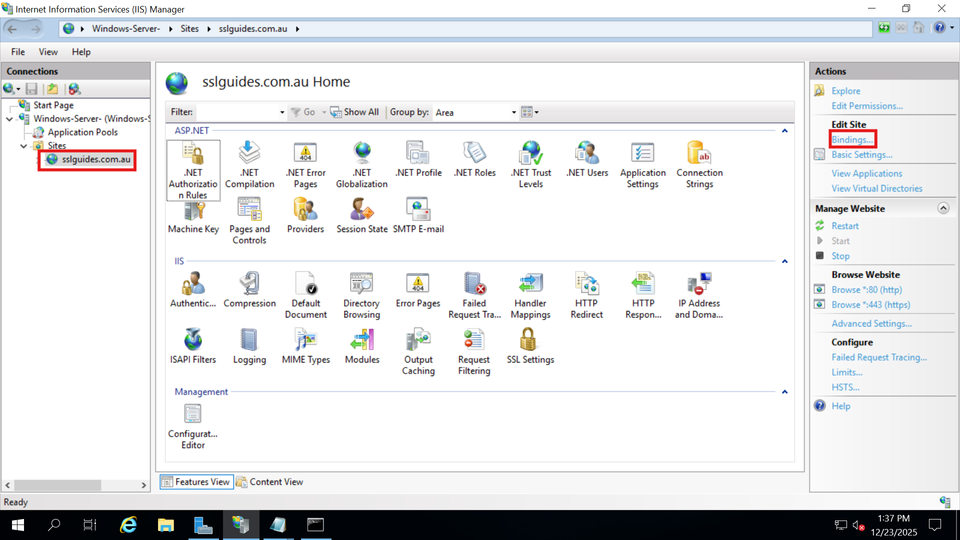
Choose the HTTP Binding and click on 'Edit'
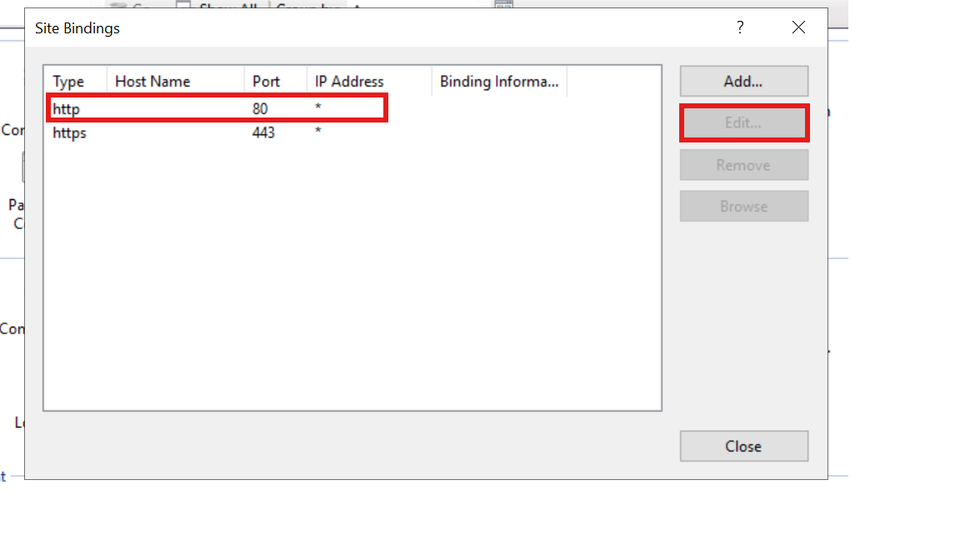
Make sure that port 80 is open.
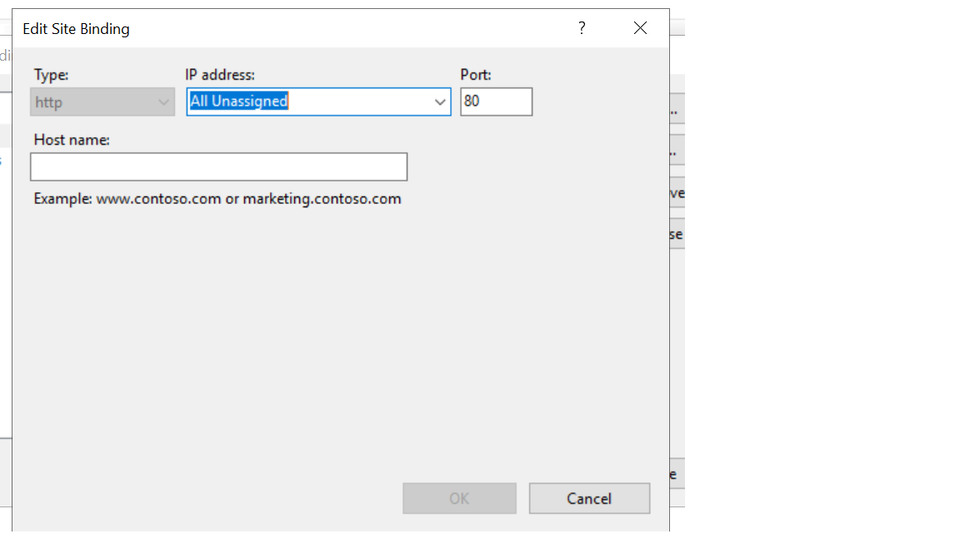
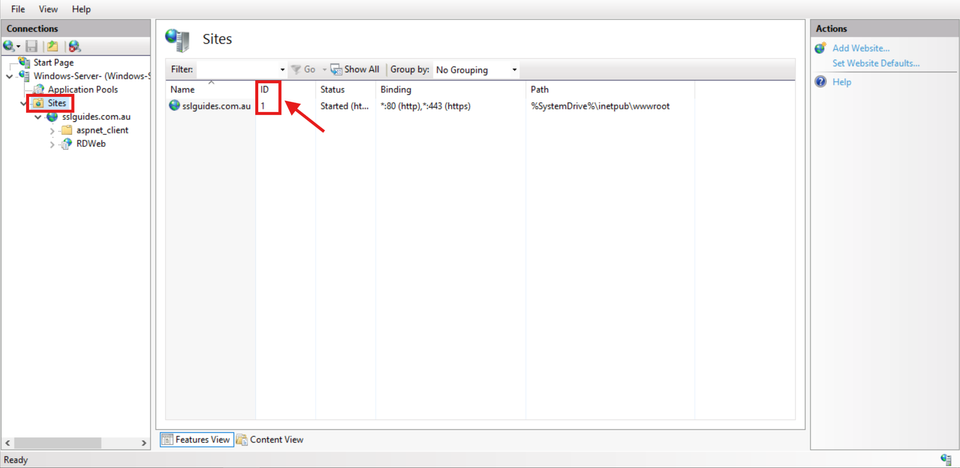
4. Click on Sites and note down your Site ID as we will need it for further configuration.
Step 4. Run the Win-ACME Installation Command
1. Open the command prompt on your Windows Server as administrator and navigate to the location of the Win-ACME folder.
shell
cd PATH_TO_WIN-ACME_FOLDER
2. Modify the below command as required and run it:
shell
wacs.exe --source manual --host "yourdomain.com,www.yourdomain.com" --baseuri CA_SERVER_DIRECTORY
  --emailaddress "YOUR_EMAIL_ID" --eab-key-identifier "YOUR_KID" --eab-key "YOUR_HMAC_KEY" --accepttos --installation iis --installationsiteid YOUR_IIS_SITE_ID --setuptaskscheduler
What this command does? --source manual: Manually specifies your domains. --installation iis --installationsiteid X: Installs the certificate onto your specific IIS site. --setuptaskscheduler: Creates a Windows Task for automatic renewal. Modifications Overview: - yourdomain.com : Replace with your domain name. Remove www.yourdomain.com if only securing non-www version. - CA_SERVER_DIRECTORY: The ACME Server directory provided by the Certificate Authority with the EAB Credentials. - YOUR_EMAIL_ID: Input your email address for renewal notifications - YOUR_KID: Input your KID (part of EAB Credentials) - YOUR_HMAC_KEY: Input your HMAC Key (part of EAB Credentials) - YOUR_IIS_SITE_ID: Your site ID (ex - 1, 2, 3) as noted on the IIS Manager.
Step 5. Verify the Installation of the SSL Certificate
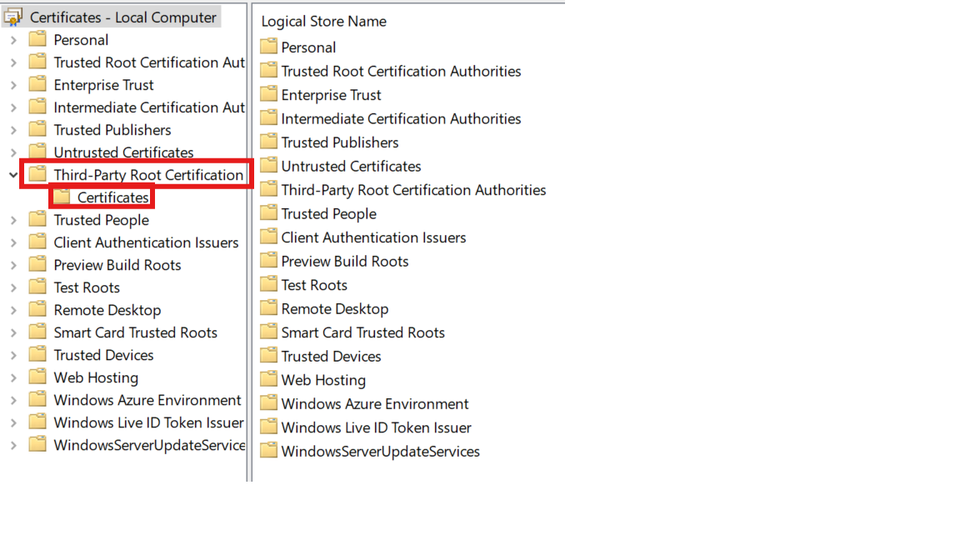
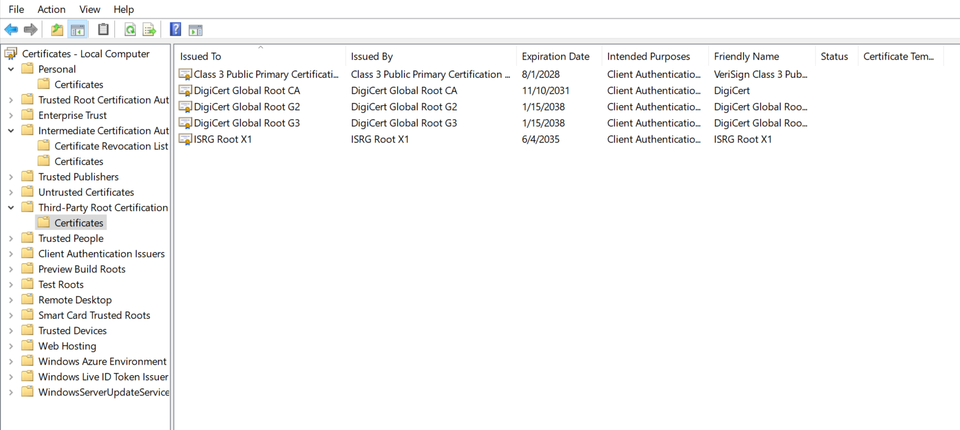
1. Certificate in Store: Press Win + R, type certlm.msc,
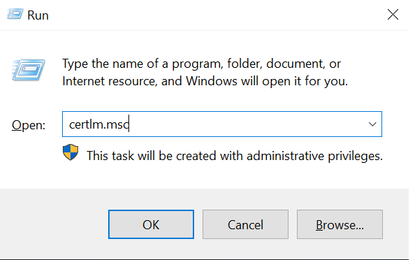
and check under Certificates (Local Computer) > Web Hosting.
You should see your recently installed ACME SSL Certificate.
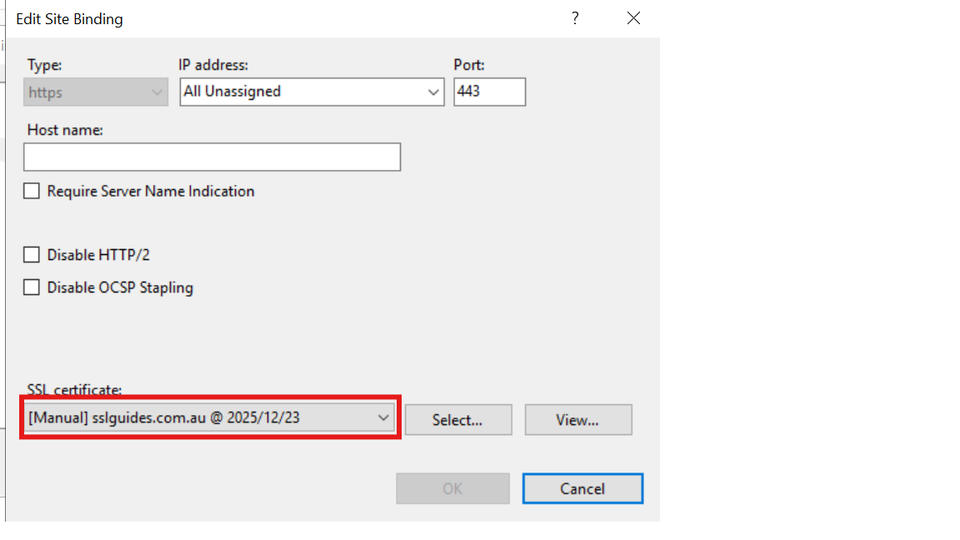
2. IIS Binding: In IIS Manager, again check your site's bindings. An HTTPS binding on port 443 should be present.
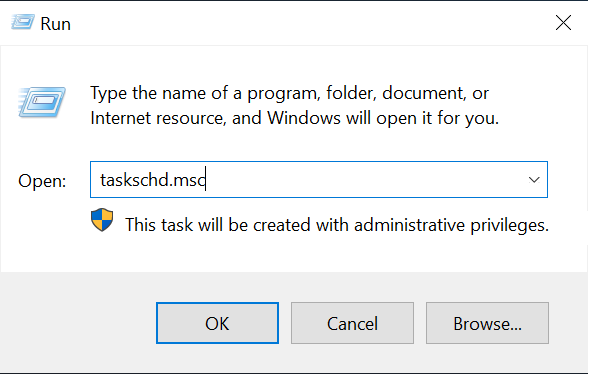
3. Check for Automated Renewal - The created Renewal Task: Press Win + R, type taskschd.msc
Look for a task named win-acme renew. It should be "Ready".

Step 6. Post Installation Troubleshooting (Optional)
Below is the error you might face during installation and how you can resolve them. Below are a few examples.
1. Fixing "403 Forbidden" Error If your site shows a 403 Forbidden error after installation, IIS is incorrectly asking for a client certificate. Solution: - In IIS Manager, select your site and navigate to SSL Settings.
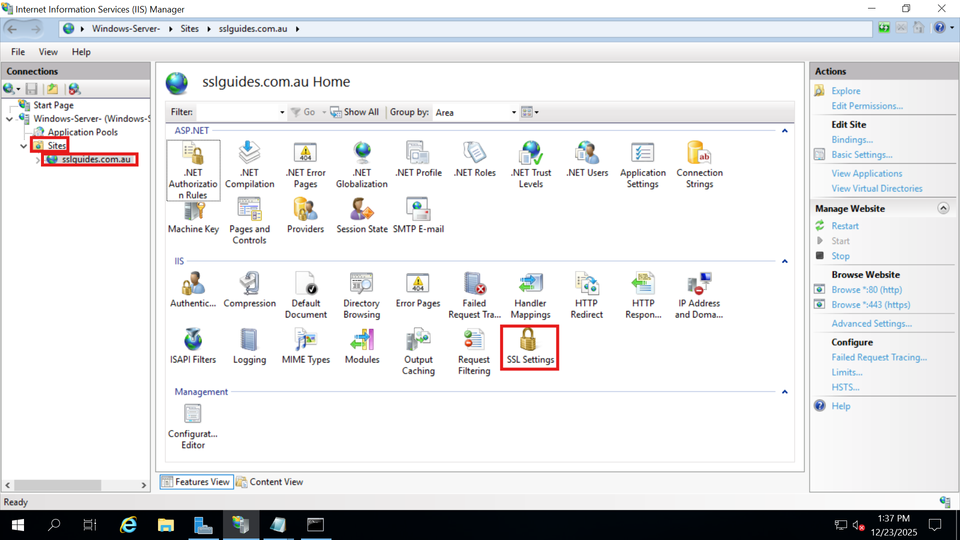
- Under Client Certificates, select Ignore and click Apply in the Actions pane and restart your site.
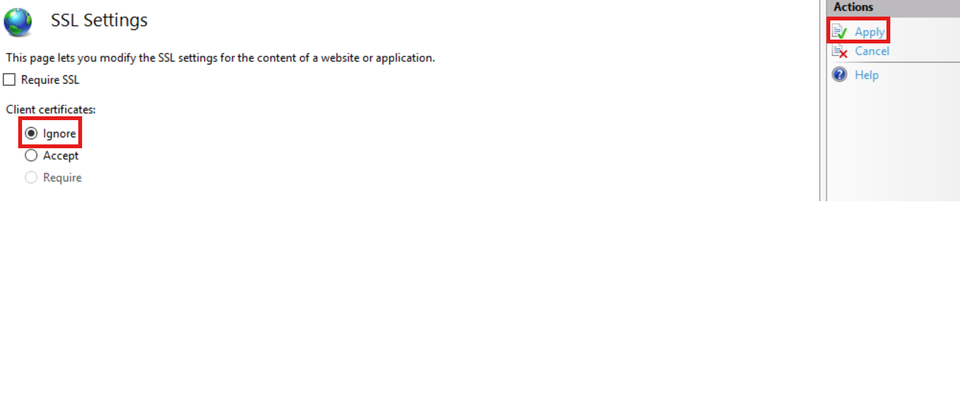
Step 7. Test your SSL's Configuration
SSLTrust's Free SSL Checker is a tool that allows you to test and validate the SSL/TLS certificates installed on websites. Simply enter a domain name and it will analyze the certificate, providing details like the issuer, expiration date, encryption strength, and whether the certificate is properly configured and trusted by major browsers and operating systems. In SSL tests, receiving an "A" rating typically signifies that the SSL certificate and its configuration meet high security standards.

The checker highlights any potential security issues or misconfigurations with the SSL implementation. This free tool makes it easy to verify if a website's SSL certificate is valid and secure, giving visitors confidence their connection is encrypted and their data is protected from eavesdroppers.
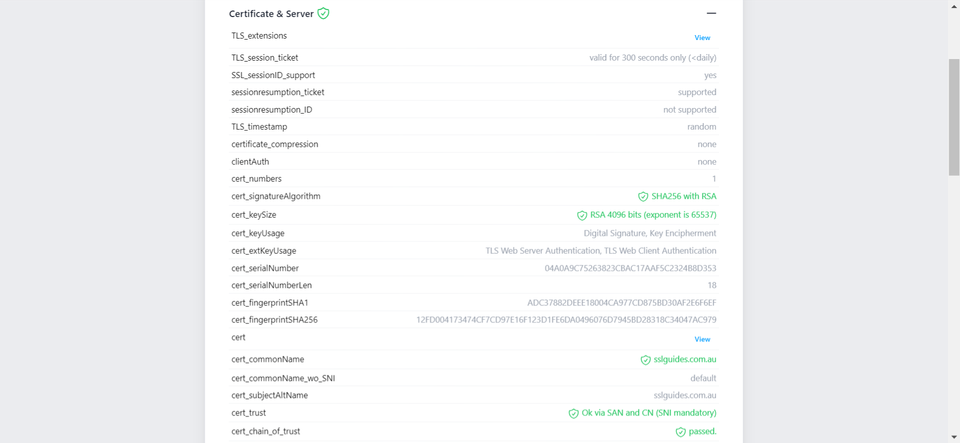
Additionally, you can also performed a detailed check which generates an actionable report with all the ins and out of your SSL Certificate. This includes Protocols, Ciphers, Vulnerabilities and much more.
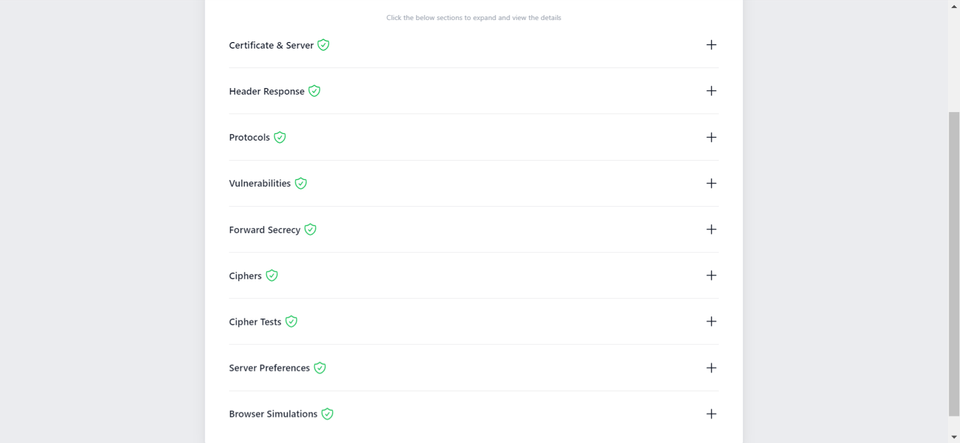
You might require assistance from your web developer or make the necessary updates to your website personally to ensure that all files utilize "https://" and all links leading to and within your website employ "https://". If you need any help with your SSL Installation, please don't hesitate to reach out to our friendly support team by clicking here .
Congratulations! You’ve now completed the full setup—your ACME SSL Certificate is installed, secured, and ready to renew automatically. From here on, your website stays protected without you having to chase deadlines or fix expired certificates. If you need any help with your SSL Installation, please don't hesitate to reach out to our friendly support team by clicking here .
If interested, do checkout some of the leading brands we have partnered with to bring the best SSL Certificates to our customers. Also, you can check the safety and security of your website at our own free website safety and security checker. If you have any other servers, control panels or other tools to install an SSL Certificate on, you can have a look at our numerous installation manuals.
Discussions and Comments
Click here to view and join in on any discussions and comments on this article.